Boot on Bare Metal
This guide walks through booting your first Kheeper-managed host on bare metal using iPXE. We'll use latitude.sh for on-demand bare metal servers with hourly billing, which means this tutorial can be completed for less than $1.
Prerequisites
- Install the CLI and log in
- Build and push an image
- A latitude.sh account
Set the vars in your shell you'll need for the remaining steps:
ORG=$(kheeper orgs list | grep 'user-[0-9a-f]' | awk '{ print $1 }')
Step 1 — Create an iPXE script
Generate a one-time iPXE script for your org. The script is valid for 24 hours.
kheeper hosts ipxe create ${ORG}/my-server
This prints a multi-line iPXE script that starts with #!ipxe and ends with boot.
Copy this script — you'll use it in the next step.
Step 2 — Create a server on latitude.sh
- Sign up or log in at latitude.sh
- Click Create Server
- Pick the cheapest available server in your desired location
- Under Operating System, select Custom iPXE and paste the script from step 1
- Under Billing, select Hourly
- Click Deploy
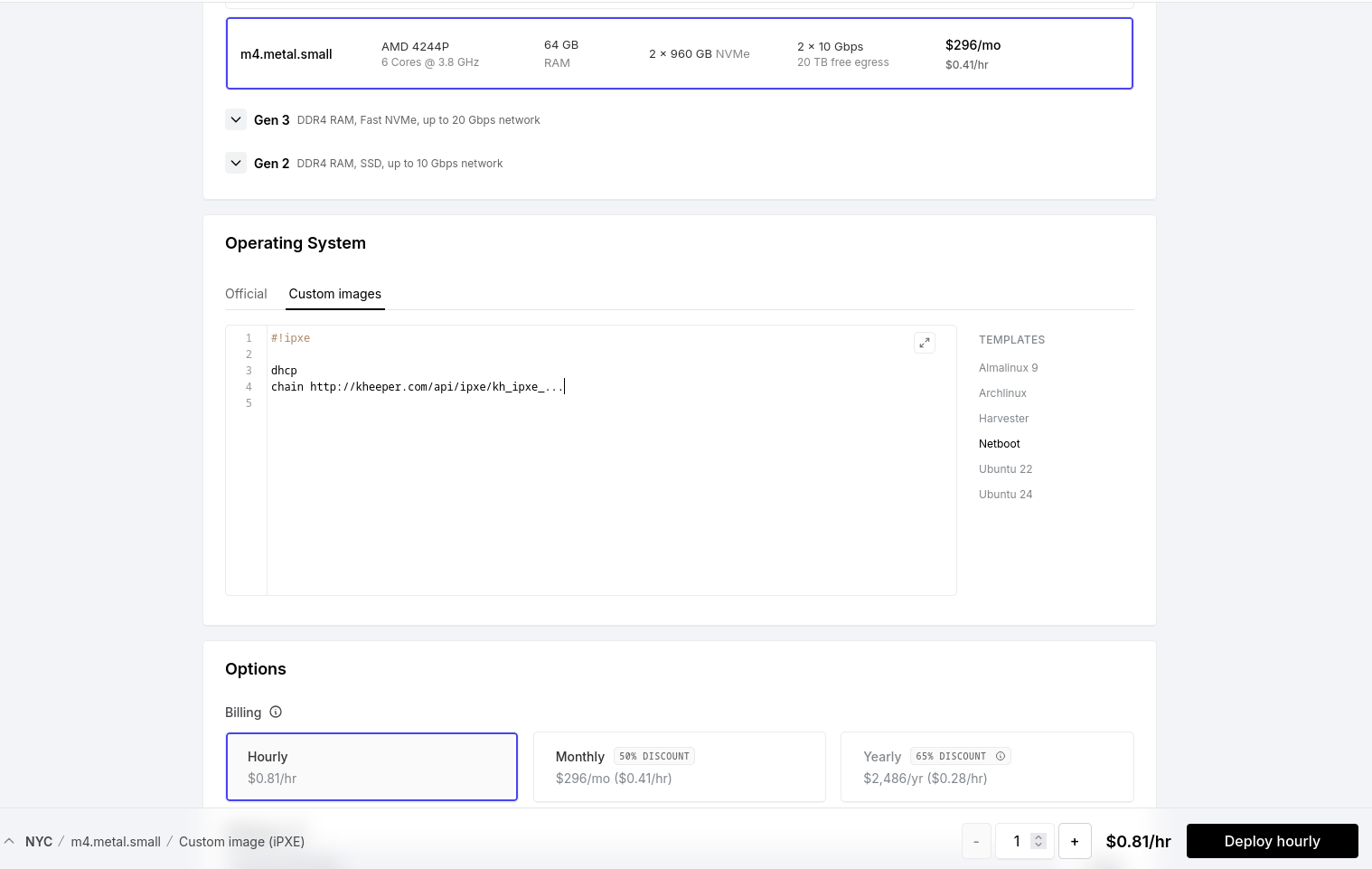
Step 3 — Wait and Verify
The server will take ten to thirty minutes to boot. Then you can check that the host has joined your organization:
kheeper hosts list --org ${ORG}
You should see my-server in the list.
Step 4 — Author the config
Generate a starter config from the image's schema and edit it to fit your host. If you used the example Caddy image from the build-and-push guide, it expects domain and name fields:
kheeper releases start config.json --image us.kheeper.com/${ORG}/getting-started:v1
Set domain to my-server.${ORG}.us.kheeper.app — every Kheeper host gets a <host>.<org>.us.kheeper.app DNS record (region-scoped) that points at its public IP, so Caddy can request a TLS cert for it automatically.
Step 5 — Create a release
Create a release that pairs the image with your config:
kheeper releases create ${ORG}/my-server:v1 \
  --image us.kheeper.com/${ORG}/getting-started:v1 \
  --config-file config.json
Step 6 — Activate the release
kheeper hosts activate ${ORG}/my-server:v1
The host will pick up the release within a minute, then pull and reboot.
Step 7 — Verify
Once the host has rebooted, curl the domain you set in the config:
curl https://my-server.${ORG}.us.kheeper.app/